Copy Text to the Clipboard with Vue 3
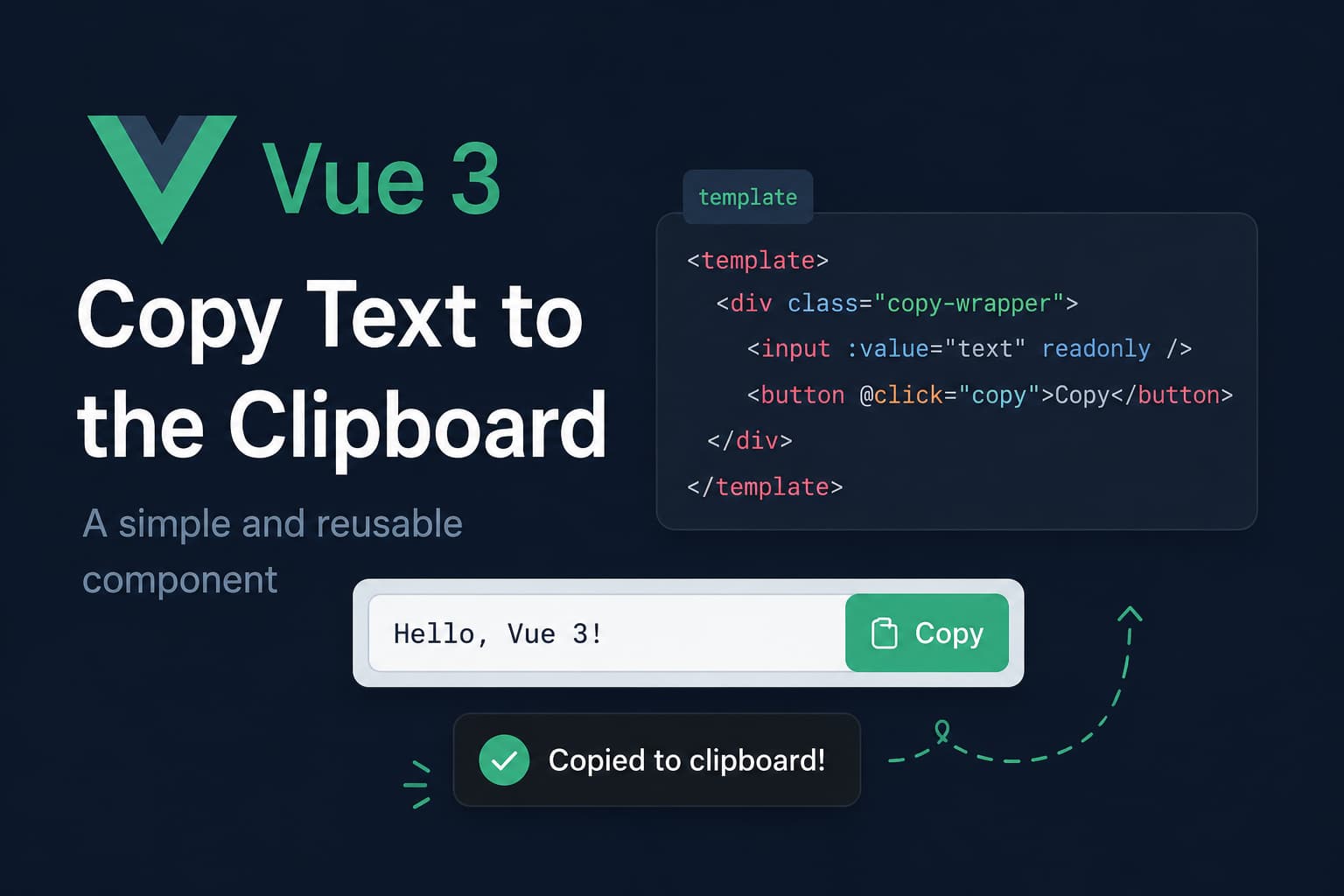
Basically there is a button which on click should copy the contents of an input, peace of cake, right? Nope! Initially I intended to use the “vue way” — Clipboard API very well documented, great examples simple as that, well not exactly it’s an amazing feature, but it’s not yet supported to all browsers including the version I’m using…at least it was easy to spot that it’s not supported, again very well documented!
As stated in the documentation:
Reactive Clipboard API. Provides the ability to respond to clipboard commands (cut, copy, and paste) as well as to asynchronously read from and write to the system clipboard. Access to the contents of the clipboard is gated behind the Permissions API. Without user permission, reading or altering the clipboard contents is not permitted.
So I started with the examples:
import { useClipboard } from '@vueuse/core'

const source = ref('Hello')
const { text, copy, copied, isSupported } = useClipboard({ source })
importing it from the vue core gives you a few things that can help you with the process:
text — the text copied to the clipboard
copy — the method which does the copying
copied — boolean variable which show if the process was successful
isSupported — show if the browser from which is called supports the Clipboard API
<div v-if="isSupported">
    <button @click='copy(source)'>
      <!-- by default, `copied` will be reset in 1.5s -->
      <span v-if='!copied'>Copy</span>
      <span v-else>Copied!</span>
    </button>
    <p>
      Current copied: <code>{{ text || 'none' }}</code>
    </p>
  </div>
  <p v-else>
    Your browser does not support Clipboard API
  </p>
since the import is made with the providing the source there is no need to pass it when the copy function is called in the template. When is used like that you have access to the text variable holding the copied text, which is not accessible when used by passing the source in the template.
Something very important which I’ve missed when starting with it:
Set
legacy: trueto keep the ability to copy if Clipboard API is not available. It will handle copy with execCommand as fallback.
even if the Clipboard API is not supported by your browser the function will use the execCommand to copy the text, so thanks to the amazing people that contributed to ituseClipboard can be used regardless of the isSupported variable like so:
const { text, copy, copied, isSupported } = useClipboard({ source, legacy: true })something very important that I’m hearing a lot and maybe not enough is:
Read the documentation!!!
I didn’t I lost maybe 2 hours figuring out how to do the copying with some of the other way like this example from w3schools:
<!-- The text field -->
<input type="text" value="Hello World" id="myInput">

<!-- The button used to copy the text -->
<button onclick="myFunction()">Copy text</button>
function myFunction() {
// Get the text field
var copyText = document.getElementById("myInput");
// Select the text field
copyText.select();
copyText.setSelectionRange(0, 99999); // For mobile devices
// Copy the text inside the text field
navigator.clipboard.writeText(copyText.value);
// Alert the copied text
alert("Copied the text: " + copyText.value);
}the problem with this example is that if the Clipboard API is not supported by the browser the navigator variable will not contain clipboard and the code will result in exception.
Which could be avoided if a trycatch statment is used like:
...
try(){
// Copy the text inside the text field
  navigator.clipboard.writeText(copyText.value);
}
catch(){
  document.execCommand('copy') // Or handle the exception some other way
}
...
After some time searching I was able to find a similar solution that will work:
function copyLink() {
    var copyText = document.getElementById('input')

    copyText.select()
    copyText.setSelectionRange(0, 99999) // For mobile devices

    document.execCommand('copy')
}
combining the example from w3schools and using the document.execCommand , now when I think about it is similar to what the useClipboard uses when the legacy variable is set to true
Conclusion
I was able to do it the way I intend it in the beginning although I wasted some time and didn’t read the documentation properly to find the answer I need it earlier and save my self a lot of digging.
Always read the documentation at least 3 or 4 times, just to be sure that you got everything from it and get the most the what is you trying to use.
The lesson for me is: Live an learn, there are always something new, something useful to learn.
Be curious, be hungry for more knowledge, always!!
Share this post